
App blocker vs website blocker for Mac: which do you need?
App blocker vs website blocker for Mac: which one you need, with examples for coding, writing, studying and admin, and the tools that do both in one.

Quick answer
Use a website blocker when the browser is required for work but certain sites are not, and an app blocker when Messages, Slack, Discord or games break the session. Use both for deep work: Nudge, Focus, Freedom, 1Focus and Cold Turkey Blocker Pro block websites and apps in one Mac session, while SelfControl blocks websites only. Nudge costs $9.99 once, after a 7-day free trial.
How do these apps compare?
Decide whether the distracting layer is the browser, another app, or both.
| App | Best for | Price | Website |
|---|---|---|---|
 NudgeTop pick NudgeTop pick | Blocking apps and websites together | $9.99 once | Get Nudge |
 SelfControl SelfControl | Website-only hard blocks | Free | Visit |
 Cold Turkey Cold Turkey | Strict app and website blocking | Free, Pro $45 once | Visit |
 Freedom Freedom | Cross-device blocks | $8.99/mo or $99.50 lifetime (Oct deal) | Visit |
 Apple Screen Time Apple Screen Time | Basic app and website limits | Free, built into macOS | Visit |
Which tool should you pick?
Browser required
Website blocker
Keep docs and search open while blocking feeds, video, shopping, or news.
Wrong apps keep opening
App blocker
Block chat, mail, games, or media apps during the session.
Deep work block
Both
Block the apps and sites outside the task; the work stack stays open.
The apps in detail
- $9.99 once
1. Focus sessions
Nudge
Best for: Blocking apps and websites together
- Choose it if
- You want task presets like coding, writing, admin, or study.
- Skip it if
- You only need one permanent website blacklist.
- Free
2. Website blocking
SelfControl
Best for: Website-only hard blocks
- Choose it if
- The browser loop is the main issue.
- Skip it if
- Distracting Mac apps are the bigger problem.
- Free, Pro $45 once
3. Blocking
Cold Turkey
Best for: Strict app and website blocking
- Choose it if
- You need high-friction rules across apps and sites.
- Skip it if
- You want a softer workflow.
- $8.99/mo or $99.50 lifetime (Oct deal)
4. Blocking
Freedom
Best for: Cross-device blocks
- Choose it if
- You need app/site blocking beyond the Mac.
- Skip it if
- You want Mac-only presets.
- Free, built into macOS
5. Usage limits
Apple Screen Time
Best for: Basic app and website limits
- Choose it if
- You want simple limits with no extra tool.
- Skip it if
- You need session-specific rules.
Decision matrix
The fastest way to decide is to look at the tool you still need during the work. If the browser is part of the job, do not block the browser. Block the unsafe destinations inside it.
If the browser is not the issue and the problem is opening Slack, Mail, games, or media apps, app blocking is the cleaner layer.
- Coding: block feeds, video, news, and non-work chat; IDE, Terminal, GitHub, docs, and package registries stay open.
- Writing: block feeds and inboxes; the writing app, notes, dictionary, and research sources stay open.
- Studying: block video, social feeds, and entertainment; notes, PDFs, LMS, and references stay open.
- Admin: block entertainment and infinite feeds; mail, calendar, docs, banking, and invoices stay open.
Common mistakes
The most common mistake is blocking too broadly. If research is part of the work, a total browser block will fail. If collaboration is required, blocking every chat tool may create cleanup later.
The second mistake is using one permanent blocklist for every task. A research session, writing session, and coding session need different rules.
Use both for serious sessions
The strongest practical setup is one block list for apps and websites, matched to the task. Nudge is built for that style: choose which Mac apps and which websites do not belong in the session, and start it from the menu bar. The best website blocker for Mac guide compares the tools below in full.
Which Mac tools block websites, apps or both?
A website and app blocker for Mac does both jobs from one place. Prices were checked on each vendor's site on 10 October 2026.
| Tool | Websites | Apps | Price |
|---|---|---|---|
| Nudge | Yes | Yes | $9.99 once, 7-day free trial |
| SelfControl | Yes | No | Free |
| Cold Turkey Blocker | Yes (free) | Yes (Pro) | Free; Pro is $45 once |
| Focus | Yes | Yes | One-time licenses at $29, $49 and $129 |
| Freedom | Yes | Yes | $8.99 a month or $99.50 lifetime (October 2026 price) |
| 1Focus | Yes | Yes | Free tier; Pro $1.99 a month or $9.99 a year |
| Apple Screen Time | Yes | Yes | Free, built in |
How do you block a Mac app or a website with Screen Time?
Screen Time handles both kinds in one place, with daily limits instead of work sessions. On macOS 26 and earlier, open System Settings, Screen Time, App Limits, then Add Limit and choose apps, categories or websites. On macOS 27, Apple replaced that layout with Schedule (time windows) and Time Allowances (daily limits by app category), and website rules live under Content & Privacy.
Because you can switch Screen Time off on your own Mac, it works better as a baseline than as a block. For the steps to block one app, see how to block apps on a Mac; for one site, see how to block websites on a Mac. To start a timed work block before you add any blocker, use the free online Pomodoro timer.
Layer 1: website rules
Website rules are best when the browser is part of the job. Developers need docs and GitHub. Writers need research. Operators need dashboards. A website blocker lets the browser stay open while high-risk destinations are blocked.
This is the right layer for social feeds, video, shopping, news, forums, sports, and any site that turns a short check into a long loop.
Layer 2: app rules
App rules are best when the interruption lives outside the browser. Mail, Slack, Discord, games, streaming apps, and personal messengers can break a work block even if every website is blocked. App blocking is also useful when the app has no web equivalent to block cleanly.
For many users, app rules should be time-boxed. Blocking all chat all day creates missed context. Blocking chat during a 60-minute writing block is much easier to defend.
Layer 3: a block list per task
The most useful setup is not one bigger blacklist. It is a short block list for the current job. A coding, writing, study, and admin preset can each block different apps and sites, so the tools that belong stay open.
Nudge is built for this model. The preset describes the work, and the apps and websites to block follow from it.
Decision examples
If you open YouTube in the same browser you use for docs, use website blocking. If you open Discord every time a test runs, use app blocking. If you open Mail during writing, app blocking is cleaner than blocking Gmail only. If Slack is needed for incident response but not implementation, create separate incident and coding presets.
The decision should be based on the interruption path, not the app category. A browser can be a work tool or a distraction tool depending on the URL. A chat app can be essential for support and destructive for deep work.
Permission and reliability checks
App blockers and website blockers often need macOS permissions: accessibility, screen recording, network extensions, browser extensions, or content filtering. Check what the tool requires and whether that fits your security expectations. If you work on a managed company Mac, some permissions may be restricted.
Reliability matters more than feature count. A simple blocker that always works in your browser is better than a powerful one that misses your real escape path.
Use temporary strictness first
If you are unsure whether to block an app or a website, make the first rule temporary and session-based. Run it for one or two work blocks, then review what happened. Permanent rules should come after evidence, not before.
This is especially important on a work Mac. Broad permanent app blocks can interrupt calls, auth flows, client messages, or operational work. Session rules keep the intervention close to the task.
FAQ
Is an app blocker more powerful than a website blocker?
Not always. App blockers cover desktop apps, but website blockers are more precise when the browser is needed for work. The stronger option is the one that targets the actual distraction path.
Is there one Mac tool that blocks both apps and websites?
Yes. Nudge, Focus, Freedom, 1Focus and Cold Turkey Blocker Pro block both apps and websites. Nudge does it in one session: you save the apps and sites to block in a preset, start it from the menu bar, and everything is reachable again when it ends. It costs $9.99 once after a 7-day free trial. SelfControl blocks websites only.
Does a website blocker also block apps?
Not by itself. A website blocker stops sites from loading in the browser, so Messages, Slack, Discord or a game still open. SelfControl is a website-only blocker. If apps are part of the problem, pick a tool that lists apps in its block list.
Should I use an allowlist or a blocklist?
Use a blocklist. Block the apps and sites that keep winning and leave work tools open. An allowlist breaks real work the first time a needed site is missing from it.
Can Apple Screen Time replace a blocker?
It can replace a blocker for basic daily limits. It usually cannot replace a workflow-focused blocker if you need presets, strict sessions, or different rules for coding, writing, and admin.
Why not block everything distracting forever?
Permanent broad blocking often fails because real work changes. Session-based rules are easier to keep because they only need to be right for the current task.
Nudge for Mac
Turn the guide into a focus session
Pick the apps and websites that pull you away and start the session from the menu bar. They stay blocked until it ends. $9.99 once after 7 days free, no card to start.
Download for macOS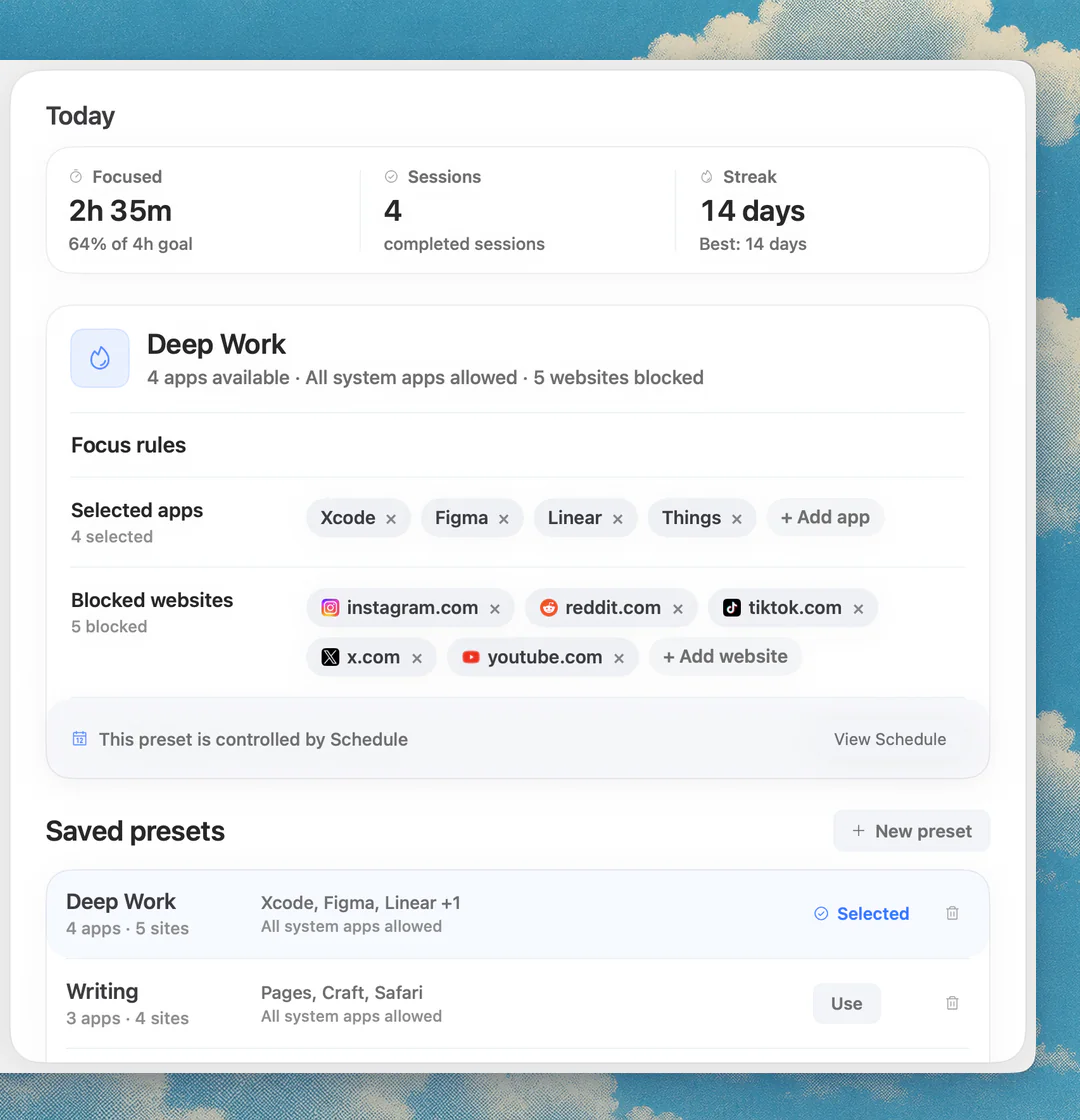
Sources
Keep reading
 Website blockingWebsite blocker for Mac: the best website and app blockers in 2026
 How-toHow to block apps on a Mac (2026)
 How-toHow to block a website on a Mac (2026)
 Developer productivityFocus app for coding on Mac: build a protected developer lane
 Writing productivityFocus app for writing on Mac: tools and presets that keep drafts moving