
Best developer productivity tools for Mac in 2026
Best developer productivity tools for Mac in 2026: a lean stack for launcher, windows, clipboard, terminal, notes, time review and protected coding sessions.
Quick answer
The best developer productivity tools for Mac are Raycast for commands, Rectangle for window control, Maccy for clipboard history, iTerm2 or Warp for the terminal, Obsidian or Notion for notes, Timing for time review, and Nudge to block distracting apps and websites during coding sessions. Add a tool only when you hit the same friction repeatedly; Nudge costs $9.99 once, with a 7-day free trial.
How do these apps compare?
Build a developer productivity stack that removes friction without turning into maintenance work.
| App | Best for | Price | Website |
|---|---|---|---|
 NudgeTop pick NudgeTop pick | Protected coding sessions | $9.99 once | Get Nudge |
 Raycast Raycast | Commands and snippets | See pricing | Visit |
 Rectangle Rectangle | Window management | See pricing | Visit |
 Maccy Maccy | Clipboard history | See pricing | Visit |
  iTerm2 or Warp iTerm2 or Warp | Terminal productivity | See pricing | Visit |
 Obsidian Obsidian | Local engineering notes | See pricing | Visit |
 Timing Timing | Automatic coding time review | 30-day trial, from $9/mo billed annually | Visit |
Which tool should you pick?
Best command layer
Raycast
Quick commands, extensions, snippets, window actions, and AI workflows.
Best window layer
Rectangle
Fast keyboard-driven window placement.
Best clipboard layer
Maccy
Lightweight clipboard history for repeated dev work.
Best coding focus layer
Nudge
Blocked apps and websites for a coding session.
The apps in detail
- $9.99 once
1. Focus protection
Nudge
Best for: Protected coding sessions
- Choose it if
- You need VS Code, Terminal, GitHub, docs, and local preview available while blocking distractors.
- Skip it if
- You only need reporting.
2. Launcher
Raycast
Best for: Commands and snippets
- Choose it if
- You want fast keyboard actions across your dev stack.
- Skip it if
- You prefer a minimal launcher.
3. Workspace
Rectangle
Best for: Window management
- Choose it if
- You constantly rearrange editor, terminal, browser, and docs.
- Skip it if
- You already use a tiling window manager.
4. Clipboard
Maccy
Best for: Clipboard history
- Choose it if
- You copy commands, paths, snippets, and logs all day.
- Skip it if
- You need enterprise clipboard controls.
5. Terminal
iTerm2 or Warp
Best for: Terminal productivity
- Choose it if
- Your work is command-heavy.
- Skip it if
- The built-in Terminal already fits.
6. Notes
Obsidian
Best for: Local engineering notes
- Choose it if
- You want durable markdown notes for decisions, commands, and debugging logs.
- Skip it if
- You need real-time team docs.
- 30-day trial, from $9/mo billed annually
7. Time analytics
Timing
Best for: Automatic coding time review
- Choose it if
- You want to see where coding time went without timers.
- Skip it if
- You need active blocking.
A developer stack should reduce context switches
Developer productivity is usually lost at boundaries: finding a command, hunting for a copied value, arranging windows, opening the wrong tab, or jumping into chat while a mental model is loaded.
The best tools remove those edges without adding a second project to maintain.
The coding focus preset
A practical Nudge coding preset blocks feeds, video, shopping, news, and non-essential chat. The editor, Terminal, local preview, Git client, GitHub or GitLab, docs, package registries, issue tracker, and notes stay open.
The point is not to isolate the developer from the internet. The point is to keep the useful internet and remove the loops. To block chat or media apps during a build, see how to block apps on a Mac, and for more on this setup see Nudge for developers.
Review after the session
If a blocked site was actually needed, take it off the block list. If an open app became a distraction, add it to the list or split coding and admin presets. Treat the workflow like code: iterate on the rule set.
The developer stack by layer
A good developer stack has a command layer, a workspace layer, a memory layer, a terminal layer, a knowledge layer, a review layer, and a focus layer. Raycast or Alfred handles commands. Rectangle or a tiling window manager handles windows. Maccy handles clipboard recovery. iTerm2, Warp, or Ghostty handles terminal work. Obsidian or Notion handles notes. Timing or Rize handles review. Nudge handles the protected coding lane.
You do not need every tool. You need the layers where friction is repeated.
Protect the browser without killing development
Developers need the browser more than most workers: docs, package registries, GitHub, issue trackers, error search, local previews, cloud dashboards, and CI logs. Blocking the browser is usually wrong. Blocking the drift destinations inside the browser is usually right.
A Nudge coding preset should block the entertainment web and leave the work web open. That distinction is the difference between a focus tool you keep and a focus tool you disable.
Reduce context switch cost
Context switching is expensive because the problem model has to reload. Developer tools should reduce the number of times you leave the model. Clipboard history keeps commands available. Window shortcuts keep docs and editor visible. Launchers avoid hunting through apps. Notes preserve debugging state. Blockers reduce the chance of opening a completely unrelated context.
This is why small utilities can outperform giant productivity platforms for developers.
A 60-minute coding session template
Before the session: write the next test, command, or file. Start the coding preset. Block mail, chat, feeds, video, shopping, and news. IDE, Terminal, GitHub, docs, package registry, issue tracker, and local preview stay open. After the session: leave a note with the next exact action.
This template is simple, but it protects the most fragile part of coding: the loaded mental model.
Avoid developer tool sprawl
Developers are especially vulnerable to tool sprawl because every utility looks like leverage. A new terminal, note app, launcher, AI assistant, window manager, and clipboard app can all be useful. Together, they can become another system to maintain.
Use a friction log for a week. Write down repeated annoyances: lost clipboard values, window rearranging, command lookup, app switching, distraction loops, forgotten context. Install tools only for repeated friction, not imagined future workflows.
AI tools and focus
AI coding tools can speed up boilerplate, search, explanations, and refactors, but they also create a new distraction surface: prompts, tool output, side quests, and generated alternatives. Treat AI as part of the coding lane only when it directly supports the current task.
If AI use turns into browsing ideas instead of shipping code, add it to a separate research or planning preset and keep implementation sessions narrower.
Do not optimize before the bottleneck is visible
The fastest developer setup is not the one with the most tools. It is the one where the repeated bottleneck has a shortcut, a rule, or a habit. If builds are slow, fix build feedback. If context disappears, improve notes and sessions. If commands are hard to recall, add snippets. If distractions win, add blockers.
This keeps productivity work tied to shipping rather than aesthetic tinkering.
FAQ
What are the best Mac productivity tools for developers?
Raycast, Rectangle, Maccy, a strong terminal, Obsidian or Notion, Timing or Rize, and Nudge cover the most common developer layers: commands, windows, clipboard, shell, notes, review, and focus protection.
Is Raycast better than Alfred for developers?
Raycast is stronger out of the box for modern extensions, command workflows, and team-friendly discoverability. Alfred remains excellent for mature custom workflows. The better choice depends on whether you want a marketplace-first or build-your-own workflow.
Should developers use a website blocker?
Yes, but not by blocking the whole browser. Developers should block distracting sites while keeping docs, GitHub, package registries, issue trackers, and local tools available.
How does Nudge help developers?
Nudge lets developers save a coding preset of the apps and websites to block, such as feeds, video, Discord or games, and start it from the menu bar. That keeps the useful parts of the internet open while reducing detours during a loaded coding session. It costs $9.99 once, after a 7-day free trial.
Can I block Slack or Discord while coding on a Mac?
Yes. Add the chat app to the block list of your coding preset and start the session. The app is available again when the session ends. Keep it off the list when you are on-call or doing review work.
Nudge for Mac
Turn the guide into a focus session
Pick the apps and websites that pull you away and start the session from the menu bar. They stay blocked until it ends. $9.99 once after 7 days free, no card to start.
Download for macOS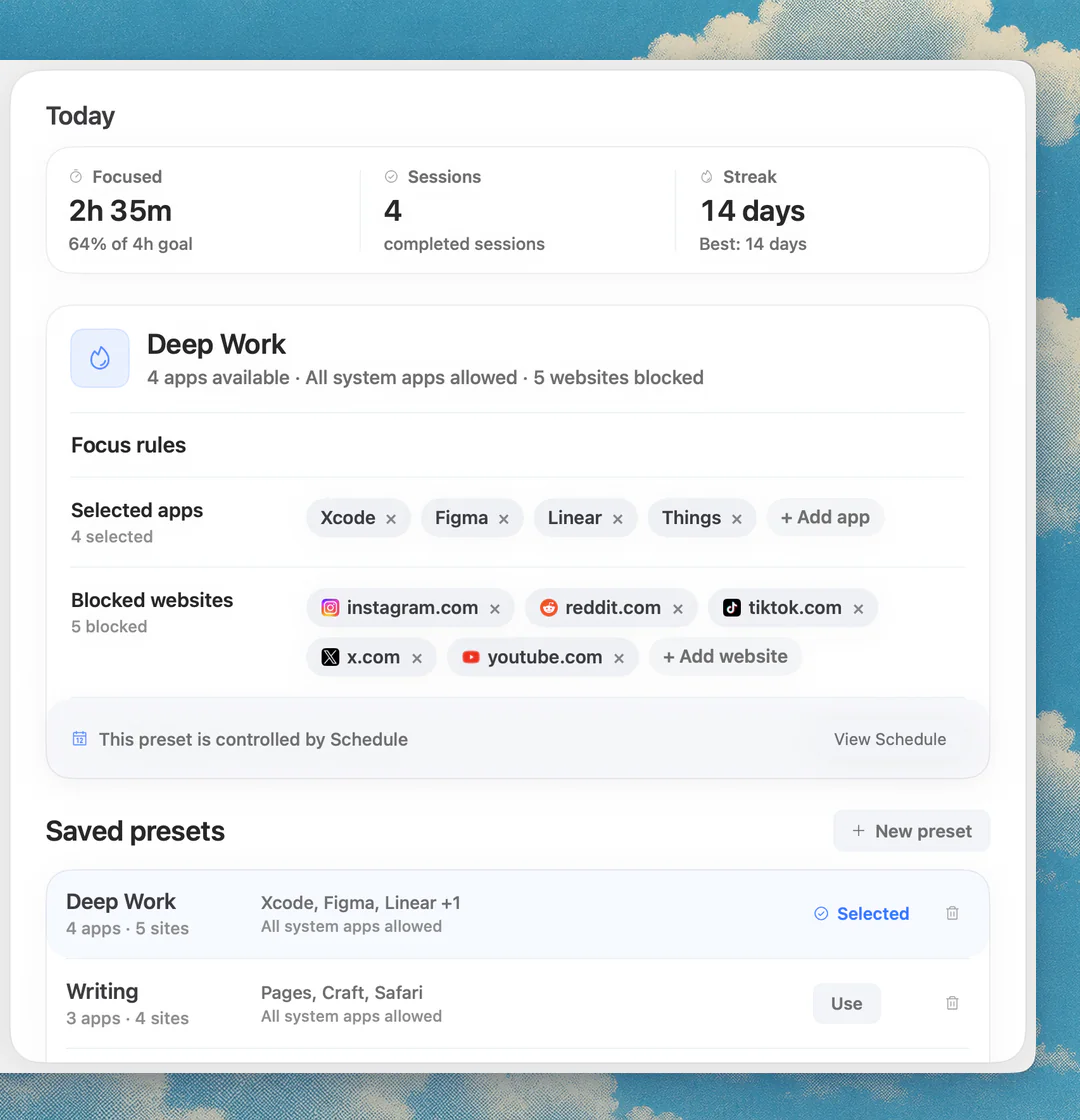
Sources
Keep reading
 Developer productivityFocus app for coding on Mac: build a protected developer lane
 How-toHow to block apps on a Mac (2026)
 PomodoroBest Pomodoro apps for Mac in 2026: menu-bar timers compared
 Focus appsBest focus app for Mac in 2026
 Website blockingWebsite blocker for Mac: the best website and app blockers in 2026