How to block LinkedIn on a Mac during work (2026)
How to block LinkedIn on a Mac during work: keep linkedin.com blocked only in focus sessions, or always with Screen Time or the hosts file. Steps and limits.

Quick answer
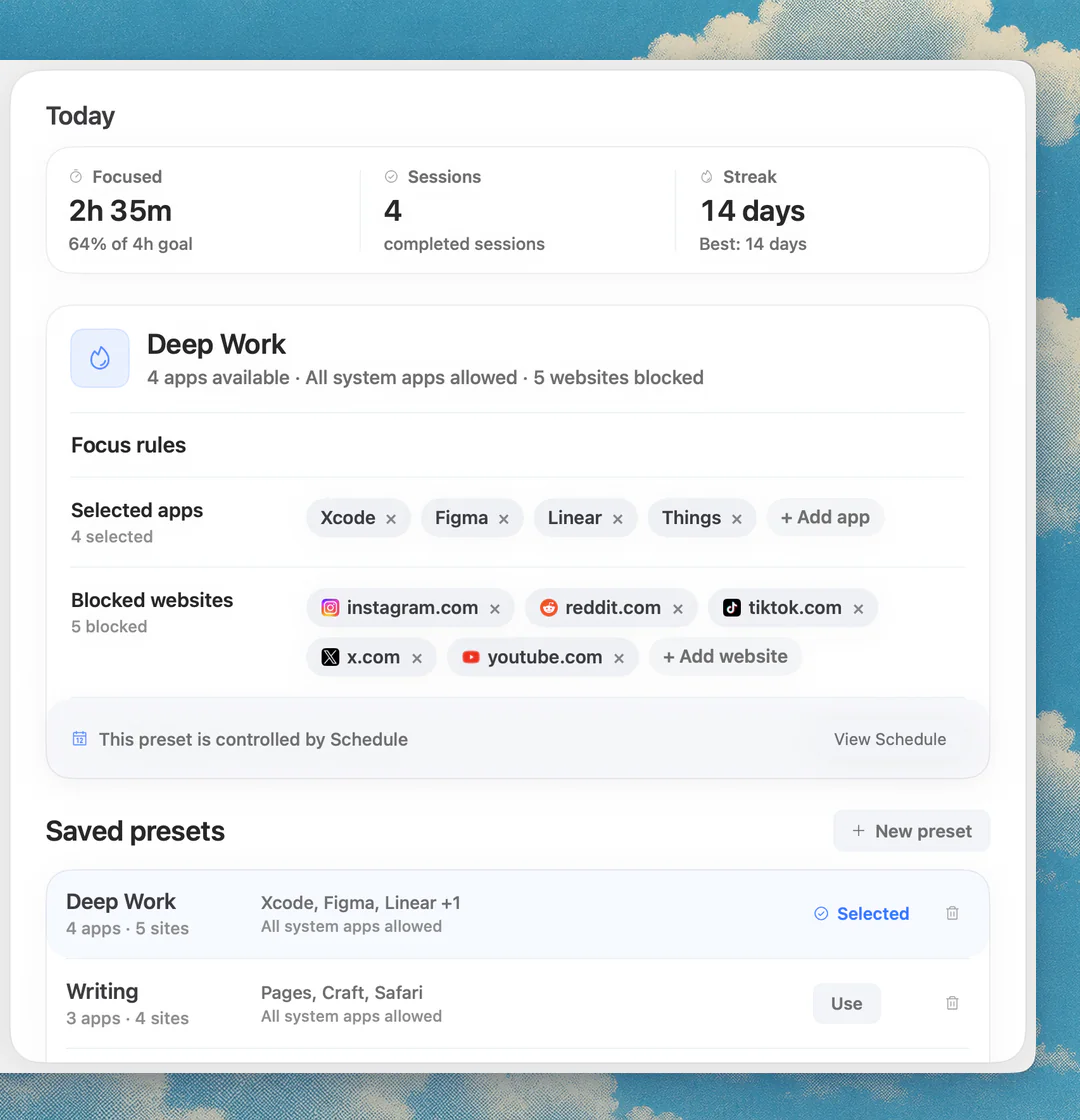
To block LinkedIn on a Mac without losing it for work, block linkedin.com only during focus sessions: a focus app such as Nudge blocks the websites you pick while a session runs in Safari and Chrome, then lets LinkedIn back in. For a permanent block, add linkedin.com and www.linkedin.com to the hosts file or the Screen Time Restricted list. Blocking works per site, so it removes the whole of LinkedIn, not only the feed.
How do these apps compare?
Block linkedin.com on a Mac only when needed, since many people use LinkedIn for work, and choose the method by how easy it is to switch on and off.
| App | Best for | Price | Website |
|---|---|---|---|
 NudgeTop pick NudgeTop pick | Blocking LinkedIn only during focus sessions | $9.99 once | Get Nudge |
 Apple Screen Time Apple Screen Time | A built-in block with no Terminal | Free, built into macOS | Visit |
 SelfControl SelfControl | A free block that holds until a timer ends | Free | Visit |
 Cold Turkey Cold Turkey | Maximum friction | Free, Pro $45 once | Visit |
 Freedom Freedom | Blocking on Mac and phone together | $8.99/mo or $99.50 lifetime (Oct deal) | Visit |
 BlockSite BlockSite | Browser-extension blocking | See pricing | Visit |
Which tool should you pick?
Best for work sessions
Nudge
Blocks linkedin.com in Safari and Chrome while a session runs, and lets it back in when you stop.
Built in and free
Apple Screen Time
No Terminal and no extra app, aimed at Safari.
Free and strict
SelfControl
A free Mac blocker that keeps a website block on until its timer ends.
Hardest to undo
Cold Turkey
Strict locked modes for people who need high friction.
Across devices
Freedom
The same blocklists on Mac and phone.
The apps in detail
- $9.99 once
1. Website and app blocking
Nudge
Best for: Blocking LinkedIn only during focus sessions
- Choose it if
- You need LinkedIn for work but want it off while you do deep work, and back afterwards.
- Skip it if
- You also need blocking on your phone. Nudge is a Mac app. For the phone, look at Freedom, Opal or Session.
- Free, built into macOS
2. Usage limits
Apple Screen Time
Best for: A built-in block with no Terminal
- Choose it if
- You want a free block from System Settings and mainly use Safari.
- Skip it if
- You use Chrome as well, or want the block tied to work sessions.
- Free
3. Website blocking
SelfControl
Best for: A free block that holds until a timer ends
- Choose it if
- You want a free Mac-only blocker that is difficult to bypass.
- Skip it if
- You need app blocking, sync or flexible exceptions.
- Free, Pro $45 once
4. Website and app blocking
Cold Turkey
Best for: Maximum friction
- Choose it if
- You need strict blocks and hard-to-bypass modes.
- Skip it if
- You want a gentle session workflow.
- $8.99/mo or $99.50 lifetime (Oct deal)
5. Website and app blocking
Freedom
Best for: Blocking on Mac and phone together
- Choose it if
- LinkedIn is a problem on both your Mac and your phone.
- Skip it if
- You want a Mac-local session tool only.
6. Browser blocking
BlockSite
Best for: Browser-extension blocking
- Choose it if
- You want a lightweight block inside one browser.
- Skip it if
- You use several browsers or profiles, since an extension affects only the browser it is installed in.
Does LinkedIn have a Mac app you need to block?
The LinkedIn listing in the App Store shows versions for iPhone and iPad, and none for Mac. On a Mac, LinkedIn is used in the browser, so blocking linkedin.com is the whole job. If you use a third-party app that shows LinkedIn in its own window, block that app as an app too.
Should you block LinkedIn all the time or only during focus sessions?
Many people need LinkedIn for recruiting, sales, messages or job searching, so a permanent block tends to get in the way of real work. A block that runs only during focus sessions keeps the site for the hours you need it. Use a permanent block only if LinkedIn is not part of your work.
The hosts file and session blocks work on the hostname, not on a page inside it, so they cannot block only linkedin.com/feed: the block removes the whole site, including messages and job pages. If you only want to hide the feed while keeping messages open, that needs a browser extension that edits the page, which affects one browser only and is outside what these methods do.
| Method | Effort | Browsers | Fits LinkedIn for work? |
|---|---|---|---|
| Nudge focus session | Low | Safari and Chrome | Yes: blocks during sessions you start or schedule, open otherwise |
| Screen Time (built in) | Low | Built for Safari; test other browsers | Partly: always on until you remove the entry |
| Hosts file | Medium (Terminal) | Chrome and other browsers that use the system resolver; Safari too unless iCloud Private Relay is on | No: you edit the file by hand each time |
| Browser-level options | Low | One browser only | Partly: other browsers stay open |
How do you block LinkedIn only during work sessions?
Add linkedin.com to a Nudge preset and start the session from the menu bar. Nudge blocks the websites and apps you picked while the session runs, in Safari and Chrome (and other Chromium browsers such as Arc, Brave and Edge). When the session ends, LinkedIn is reachable again. Keep one preset for deep work with LinkedIn blocked and another without it for outreach hours.
- Nudge costs $9.99 once for Lifetime Access, with no subscription, and every Mac gets a 7-day free trial that needs no email, password or card.
- To compare other tools, read the best website blocker apps for Mac.
Open Nudge and create a preset, such as Deep Work.
Add linkedin.com to the websites to block.
Start the preset from the menu bar, or use Quick Focus for a one-off session.
Optional: add a schedule so the preset runs on the days and hours you choose, and leave your outreach hours outside it.
Can you block LinkedIn with Screen Time?
Yes, as an always-on block. Screen Time is built into macOS and has a web content restriction with a Restricted list. It is aimed at Safari, so check other browsers after you set it up. To use LinkedIn again, remove the entry.
Version note: Apple's guides for macOS 26 and macOS 27 give the same path for website restrictions. The macOS 27 Schedule and Time Allowances settings work on apps and app categories, so they are not how you block a single website.
Click the Apple menu, open System Settings and click Screen Time in the sidebar. Turn it on if needed.
Click Content & Privacy and turn it on.
Open App Store, Media, Web & Games.
Under Safari, choose Limit Adult Websites, then click Customize.
Click the + button under the Restricted list, enter https://www.linkedin.com and click Done. To remove it later, select the site and click the minus button.
Open linkedin.com in Safari to confirm it is blocked, and repeat in any other browser you use.
How do you block linkedin.com with the hosts file?
Point the LinkedIn hostnames at an address that goes nowhere. Each entry covers one hostname only, with no wildcards. LinkedIn also has country subdomains such as uk.linkedin.com that load on their own, so add the ones you use. m.linkedin.com redirects to www.linkedin.com (checked on 11 October 2026). With iCloud Private Relay on, Safari sends its requests through Apple's relays, so a hosts entry may not apply there; turn Private Relay off for Safari and check.
- To unblock, delete the lines, flush the cache again and restart the browser. Editing the file by hand each morning and evening is tedious, which is why a session-based block suits LinkedIn better.
- While LinkedIn is blocked, by any method, Sign in with LinkedIn buttons on other sites stop working too, because they open www.linkedin.com.
Open Terminal and run:
sudo nano /etc/hostsEnter your Mac password. Move to the bottom of the file and add:
0.0.0.0 linkedin.com
0.0.0.0 www.linkedin.com
Press Control-O, then Return to save, and Control-X to exit.
Flush the DNS cache so the change applies now:
sudo dscacheutil -flushcache
sudo killall -HUP mDNSResponder
Quit and reopen your browser, then open linkedin.com and confirm it no longer loads.
Can your browser block LinkedIn on its own?
Only partly, and only inside that one browser. Neither Safari nor Chrome has a built-in website blocklist for personal use. Safari relies on Screen Time. Chrome relies on extensions or system-level blocks such as the hosts file. A separate browser profile for work and one for leisure can keep LinkedIn out of your work profile, but another profile stays open.
Step-by-step options are in the Chrome guide and the Safari guide. For the general method, see how to block websites on a Mac.
What about the other social sites?
The same methods work for Facebook, Instagram and Twitter. If scrolling in general is the problem, see how to stop procrastinating on a Mac.
FAQ
How do I block LinkedIn on my Mac during work?
Add linkedin.com to a Nudge preset and start the session from the menu bar. LinkedIn is blocked in Safari and Chrome while the session runs and reachable afterwards. For a permanent block, use the hosts file or the Screen Time Restricted list.
Can I block only the LinkedIn feed and keep messages?
Not with the hosts file or a session block: both work on the whole site by hostname. Hiding only the feed needs a browser extension that changes the page, and it affects one browser only.
Is there a LinkedIn app to block on Mac?
The App Store listing for LinkedIn shows iPhone and iPad versions, with no Mac version. On a Mac, LinkedIn is used in the browser.
Does Screen Time block LinkedIn in Chrome?
Screen Time web restrictions are built around Safari. After adding linkedin.com, open it in each browser you use and check. The hosts file or a focus app that supports Chrome covers it directly.
Does blocking LinkedIn on my Mac block it on my iPhone?
No. A Mac block applies to that Mac. For the phone, use Screen Time on iPhone or another phone app. Nudge is a Mac app and does not block phones.
Can Nudge block LinkedIn only during certain hours?
Yes. Add linkedin.com to a preset and run it from the menu bar, or use a schedule to run the preset on the days and hours you choose. Outside those sessions LinkedIn stays reachable.
Nudge for Mac
Turn the guide into a focus session
Pick the apps and websites that pull you away and start the session from the menu bar. They stay blocked until it ends. $9.99 once after 7 days free, no card to start.
Download for macOS