How to block games on a Mac: Steam, launchers and game sites (2026)
How to block games on Mac: Steam and other launchers with Screen Time or an app blocker, browser game sites with the hosts file, and games only in work hours.

Quick answer
To block games on a Mac, treat them as two things: apps and websites. For Steam and other launchers, use Screen Time (App Limits on macOS 26 and earlier, the Games category in Time Allowances on macOS 27) or an app blocker such as Nudge, which blocks the apps you pick while a session runs. For browser game sites, add them to Screen Time's Restricted list, edit the hosts file, or add them to the same Nudge preset. If you only need games gone during work hours, a scheduled Nudge preset or a Screen Time Schedule does that.
How do these apps compare?
Stop yourself from opening Steam, game launchers and browser games on a Mac during work or study hours, and choose between Screen Time, the hosts file and an app blocker.
| App | Best for | Price | Website |
|---|---|---|---|
 NudgeTop pick NudgeTop pick | Blocking games and game sites during work hours | $9.99 once | Get Nudge |
 Apple Screen Time Apple Screen Time | A free built-in limit with a passcode | Free, built into macOS | Visit |
 Cold Turkey Cold Turkey | Strict blocks of apps, games and sites | Free, Pro $45 once | Visit |
 Focus Focus | A dedicated Mac app blocker with a trial | From $29 once | Visit |
Which tool should you pick?
Best for work hours
Nudge
One preset blocks Steam, other launchers and game sites together, on a schedule or from the menu bar.
Built in and free
Apple Screen Time
App Limits or the Games category, plus a passcode. No extra app.
Strict blocking
Cold Turkey
Blocks websites, apps and games, with locked modes.
Free hosts-file route
Hosts file
Manual and per hostname, but free and works for browser game sites.
The apps in detail
- $9.99 once
1. App and website blocking
Nudge
Best for: Blocking games and game sites during work hours
- Choose it if
- You want Steam, launchers and game sites blocked together while you work, and back when the session ends.
- Skip it if
- You need to block games on a phone or console: Nudge is a Mac app, so for a phone look at Freedom, Opal or Session.
- Free, built into macOS
2. Usage limits
Apple Screen Time
Best for: A free built-in limit with a passcode
- Choose it if
- You want a block from System Settings with no extra app.
- Skip it if
- You want the block tied to work sessions, or to block one specific launcher on macOS 27.
- Free, Pro $45 once
3. App and website blocking
Cold Turkey
Best for: Strict blocks of apps, games and sites
- Choose it if
- You need a block that is hard to talk yourself out of.
- Skip it if
- You want a light session workflow from the menu bar.
- From $29 once
4. App and website blocking
Focus
Best for: A dedicated Mac app blocker with a trial
- Choose it if
- You want a separate Mac app to block apps and sites and want to try it first.
- Skip it if
- You only want a free built-in option.
How do you block games on a Mac?
Games reach a Mac in two ways: as apps (Steam, Epic Games Launcher, Battle.net, GOG Galaxy, or a game installed directly) and as websites that run in the browser. Each needs its own block, which is why one setting rarely covers everything.
This guide is written for adults who want to stop their own gaming from eating the working day. It is about self-control, not surveillance, so the methods below are ones you set up for yourself. If you are setting limits for a child, see the short note near the end.
| Method | Blocks | Effort | Easy to undo? |
|---|---|---|---|
| Screen Time App Limits (macOS 26 and earlier) | Chosen apps or categories such as Games, after a daily time limit | Low | Easy without a passcode. Harder with one. |
| Screen Time Schedule and Time Allowances (macOS 27) | App categories such as Games, by time window or daily allowance | Low | Easy without a passcode. Harder with one. |
| Screen Time web restrictions | Named websites in Safari | Medium | Remove the entry from the Restricted list. |
| Hosts file | Named game sites in browsers that use this Mac's resolver | High, uses Terminal | Delete the lines and flush DNS. |
| Nudge preset | Chosen apps and websites, during a session or schedule. Websites in Safari and Chrome. | Low | Everything is reachable again after the session. |
How do you block Steam on a Mac?
Steam is an app, so you block it as an app. There are two routes: a Screen Time limit, or an app blocker with a session or schedule.
A block on Steam does not cover other launchers, so add each one you use. Games you installed from Steam are separate apps too, so block the launcher and the games, or block the whole Games category where your macOS version has one.
Steam's store and community pages are also websites. Blocking the Steam app does not stop you opening store.steampowered.com in a browser, so add the site as well if browsing it is part of the habit.
- Screen Time works from System Settings and is free. It is a time budget, not a work-hours switch.
- An app blocker such as Nudge closes the gap: put Steam, other launchers and the Steam store in one preset and run it during work.
- Cold Turkey and Focus are other Mac apps that block apps and websites, if you want a stricter lock.
How do you block games with Screen Time on macOS 26 and earlier?
On macOS 26 and earlier, Screen Time uses App Limits and Downtime. App Limits cap time on an app, a category such as Games, or a website. With Block at End of Limit selected, the app is blocked when the time is used up. A very short limit gets close to a full block.
- Without a Screen Time passcode, anyone using your account can switch the limit off. Turn on Lock Screen Time Settings and set a passcode you will not remember easily, or ask a friend to set it, if you want real friction.
- Apple's older Mac guide notes that Block at End of Limit appears only when a passcode is in use, so set the passcode first if you do not see it.
Open System Settings and click Screen Time in the sidebar. You may need to scroll down.
Click App Limits and turn it on if it is off.
Click Add Limit.
Select Games in the category list, or open the list and tick the specific apps such as Steam.
Choose Every Day and enter a short time, or choose Custom to set a time for each day.
Select Block at End of Limit and click Done.
Optional: use Downtime to block apps during set hours, such as 9 am to 6 pm on weekdays, except the apps you always allow.
How do you block games with Screen Time on macOS 27?
macOS 27 replaces App Limits and Downtime with Schedule and Time Allowances. Schedule sets time windows for chosen days and the app categories allowed in each. Time Allowances set daily limits by app category, and Apple's guide gives Games as one of the categories you can add.
Because these work by category, they are best for 'no games in this window'. They are not designed to block one single launcher. If you want Steam blocked and another game app left alone, an app blocker is the better tool.
Open System Settings, click Screen Time and turn on Schedule.
Click Add New Schedule, choose the days and click Done.
Click Add Time Window, name it, set the start and stop times, and pick which app categories stay allowed. Leave Games off the allowed list.
For a daily budget instead, click Time Allowances, click Manage Categories, then Add, and choose Games.
Turn on the Screen Time passcode lock if you want it harder to undo.
How do you block Steam and launchers with an app blocker?
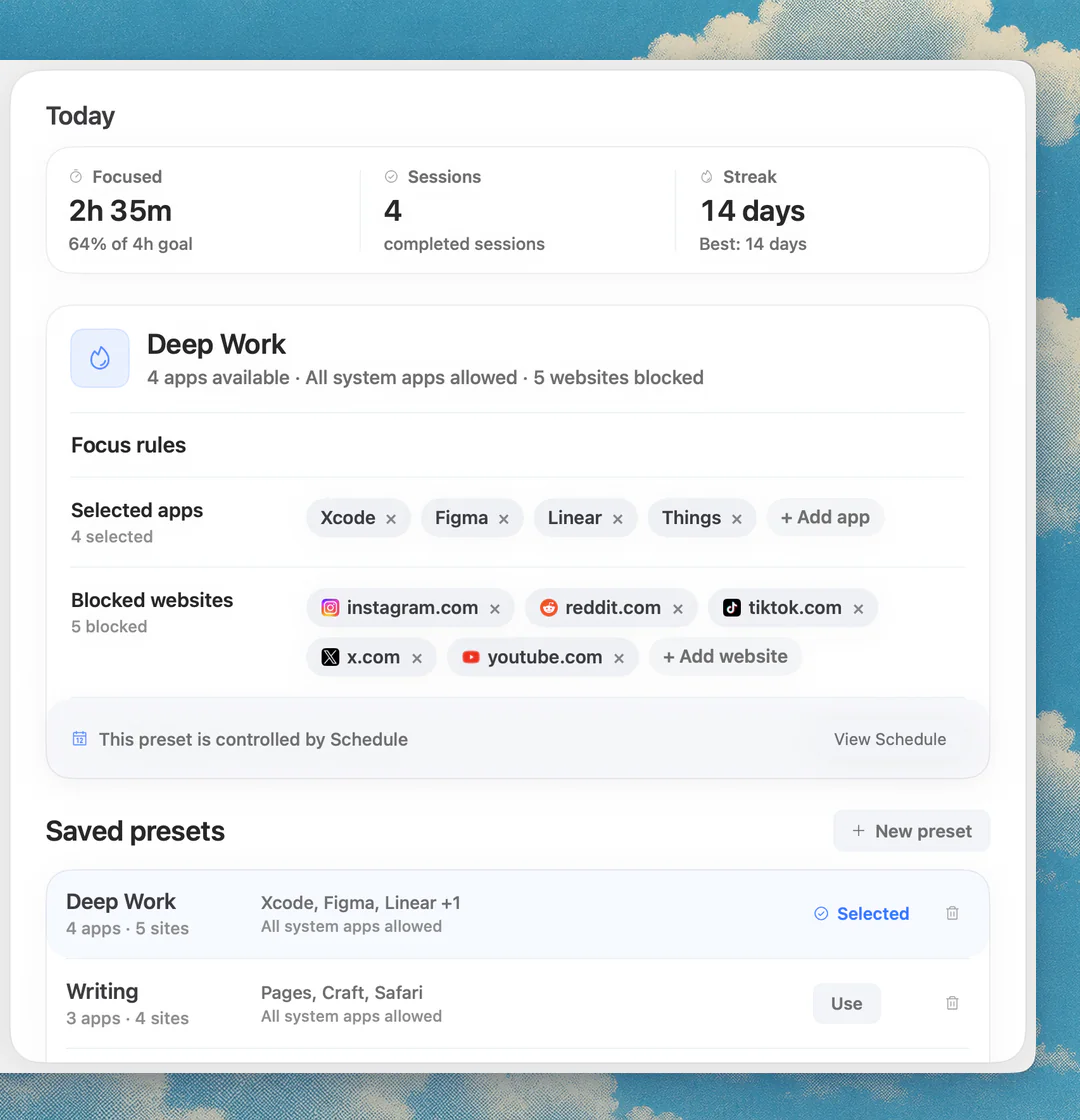
An app blocker lets you pick exact apps and block them for a session, instead of for a daily budget. Nudge is a Mac app that does this from the menu bar. You save a preset, add the apps and websites, and start it when you sit down to work.
Nudge costs $9.99 once for Lifetime Access, with no subscription. Every Mac gets a 7-day free trial with every feature and no email, password or card.
- The apps and websites are blocked while the session runs and reachable after it ends.
- Cold Turkey blocks websites, apps and games, with a free version and Blocker Pro at $45 once. Focus sells one-time licenses from $29, with a 7-day free trial.
- More options are in Cold Turkey alternatives for Mac and how to block apps on a Mac.
Open Nudge and create a preset, such as Deep Work.
Add the game apps to block: Steam, Epic Games Launcher, Battle.net, GOG Galaxy and any game you launch directly.
Add the game websites you use. They are blocked in Safari and Chrome.
Start the preset from the menu bar, or use Quick Focus for a one-off session.
Optional: add a schedule, so the preset runs on the days and hours you choose.
How do you block game websites on a Mac?
Browser games and game portals are websites, so an app block does not touch them. You have three options: Screen Time web restrictions, the hosts file, or a website blocker that works in the browser.
Screen Time's route is System Settings, Screen Time, Content & Privacy, App Store, Media, Web, & Games. Under Safari choose Limit Adult Websites, click Customize and add the site to the Restricted list. Apple describes this setting for Safari only, so open the site in each browser you use to confirm. The steps are the same on macOS 26 and macOS 27. There is no timer, so the block stays until you remove the entry.
For a deeper look, see how to block websites on a Mac.
How do you block a game site with the hosts file?
This is an advanced manual method. The hosts file makes a site's address point nowhere, and it needs an admin password. It works per hostname, with no wildcards, so add the root domain and every subdomain you use, such as www.
Replace example-games.com in the steps below with the real site. Hosts rules apply to browsers on this Mac that use the system resolver or Chrome's own resolver. A proxy or VPN that resolves names remotely does not read the file, and with iCloud Private Relay on, Safari may bypass it, so turn Private Relay off for Safari and test.
It does not know when you are working. To undo it, delete the lines and flush DNS again.
Open the hosts file in Terminal with an admin password.
sudo nano /etc/hostsAdd a line for the site and its www version.
0.0.0.0 example-games.com
0.0.0.0 www.example-games.com
Save the file, then flush DNS.
sudo dscacheutil -flushcache
sudo killall -HUP mDNSResponder
Quit and reopen the browser, then open the site to confirm it is blocked.
How do you block games only during work hours?
Most people do not want games gone for good. They want them gone from nine to five. Two tools do that.
Screen Time Downtime (macOS 26 and earlier) or a Schedule time window (macOS 27) is clock-based: it runs for the hours you set, whether or not you are working. Nudge presets can run on a schedule with the days and hours you choose, or start from the menu bar when a task begins, so you can switch the block on for a deep-work block and off again after.
If you work in timed rounds, the free web Pomodoro timer pairs with either tool. If the real problem is putting off the task rather than the game, read how to stop procrastinating on a Mac.
What if you are setting this up for a child?
Parents can use Screen Time with Family Sharing to set limits for a child's Mac, iPhone or iPad from their own device, as Apple explains in its parental controls guide. That is a different setup from the self-control methods above.
FAQ
How do I block games on my Mac?
Block the game apps and the game websites separately. For apps, use Screen Time (App Limits on macOS 26 and earlier, the Games category in Time Allowances on macOS 27) or add them to a Nudge preset. For websites, use the Screen Time Restricted list, the hosts file, or the same Nudge preset.
How do I block Steam on a Mac?
Steam is an app, so add it to a Screen Time limit or to an app blocker such as Nudge. Also block the games installed through it, or the whole Games category, and add store.steampowered.com if you browse the store in a browser.
Can Screen Time block games on macOS 27?
Yes, by category. Time Allowances can limit a category such as Games, and a Schedule time window can leave Games out of the allowed categories. Blocking one single launcher is easier with an app blocker.
How do I block game websites on a Mac?
Add them to the Restricted list under Screen Time, Content & Privacy, App Store, Media, Web, & Games (Safari only), edit the hosts file with sudo, or add them to a Nudge preset, which blocks websites in Safari and Chrome.
Can I block games only during work hours?
Yes. Use a Screen Time Downtime or Schedule window, or a Nudge preset on a schedule that runs the days and hours you choose. Outside those hours the games are reachable again.
Can I still switch the block off?
Screen Time can be switched off by anyone with access to your account unless you set a passcode. A hosts file entry can be deleted. Treat these as friction, not locks, and choose a stricter tool such as Cold Turkey if you need more.
Nudge for Mac
Turn the guide into a focus session
Pick the apps and websites that pull you away and start the session from the menu bar. They stay blocked until it ends. $9.99 once after 7 days free, no card to start.
Download for macOS