
Best time blocking apps for Mac in 2026
Best time blocking app for Mac: Reclaim, Motion, Sunsama, Akiflow and Fantastical compared with prices checked 10 Oct 2026, plus how to protect each block.
Quick answer
The best time blocking app for Mac depends on how much you want automated: Reclaim (free Lite plan) or Motion when meetings keep moving and tasks should reschedule themselves, Sunsama or Akiflow for deliberate daily planning, and Fantastical (free tier) for a fast Mac-native calendar. None of them stops you opening a feed when the block starts, so add Nudge, which blocks the apps and websites you pick for the length of the block ($9.99 once). Prices checked on each vendor's site on 10 October 2026.
How do these apps compare?
Choose a time-blocking tool and connect it to focus-session execution.
| App | Best for | Price | Website |
|---|---|---|---|
 NudgeTop pick NudgeTop pick | Protecting the block | $9.99 once | Get Nudge |
 Motion Motion | Automated scheduling | Trial, from $19/seat/mo | Visit |
 Reclaim Reclaim | Defending focus time | Free Lite, Starter $10/seat/mo annual | Visit |
 Akiflow Akiflow | Task inbox plus calendar | 7-day trial, $19/mo annual | Visit |
 Sunsama Sunsama | Deliberate daily planning | 14-day trial, $17/mo annual | Visit |
 Fantastical Fantastical | Mac-native calendar speed | See pricing | Visit |
 Sorted Sorted | Visual day timeline | See pricing | Visit |
 Structured Structured | Simple visual day plan | See pricing | Visit |
 Todoist Todoist | Lightweight task time blocking | See pricing | Visit |
Which tool should you pick?
Best automated planner
Motion
Useful when tasks need to move around meetings automatically.
Best focus-time defense
Reclaim
Good for protecting recurring focus time around a busy calendar.
Best unified task inbox
Akiflow
Pull tasks into a calendar workflow with fast planning.
Best calm daily planning
Sunsama
Strong for realistic day planning and shutdown rituals.
Best execution companion
Nudge
Turns the block into a protected Mac session.
The apps in detail
- $9.99 once
1. Focus protection
Nudge
Best for: Protecting the block
- Choose it if
- The calendar says focus time but your Mac does not behave like it.
- Skip it if
- You need schedule automation.
- Trial, from $19/seat/mo
2. Calendar planning
Motion
Best for: Automated scheduling
- Choose it if
- You want tasks automatically scheduled and reshuffled.
- Skip it if
- You prefer manual control.
- Free Lite, Starter $10/seat/mo annual
3. Calendar planning
Reclaim
Best for: Defending focus time
- Choose it if
- You need recurring focus blocks protected around meetings.
- Skip it if
- You want a Mac-native standalone calendar.
- 7-day trial, $19/mo annual
4. Planning
Akiflow
Best for: Task inbox plus calendar
- Choose it if
- Your tasks come from many sources and need one daily plan.
- Skip it if
- You only need a simple calendar.
- 14-day trial, $17/mo annual
5. Planning
Sunsama
Best for: Deliberate daily planning
- Choose it if
- You want a calmer workday plan with realistic workload limits.
- Skip it if
- You want aggressive automation.
6. Calendar
Fantastical
Best for: Mac-native calendar speed
- Choose it if
- You want excellent natural language input and calendar ergonomics.
- Skip it if
- You need task scheduling automation.
7. Planning
Sorted
Best for: Visual day timeline
- Choose it if
- You like arranging a day by dragging tasks into a timeline.
- Skip it if
- You need team scheduling.
8. Planning
Structured
Best for: Simple visual day plan
- Choose it if
- You want a lightweight timeline across devices.
- Skip it if
- You need advanced calendar logic.
9. Tasks
Todoist
Best for: Lightweight task time blocking
- Choose it if
- You already manage tasks in Todoist and want calendar blocks.
- Skip it if
- You need a full planning dashboard.
Time blocking has two parts
The calendar decides when work should happen. The execution layer decides whether the environment supports that work when the block starts.
Most time blocking failures happen in the second part. The block exists, but the browser, inbox, and chat apps still have the same pull.
What do the time blocking apps for Mac cost?
Prices below come from each vendor's own site, checked on 10 October 2026. Billing periods and regional pricing can change the figure at checkout.
If you want a free time blocking setup, Reclaim's Lite plan and Fantastical's free tier cover calendar basics, and Apple Calendar is built in. Motion has no free plan listed, and Akiflow has a 7-day trial that asks for a card.
| App | Free option | Paid plan | Style |
|---|---|---|---|
| Reclaim | Lite plan, free forever (1-user team, 1 calendar sync) | Starter $10 per seat per month billed yearly, $12 monthly | Automatic focus-time defense |
| Motion | Free trial; no free plan listed | Pro AI $19 per seat per month on its pricing page | Auto-scheduling |
| Sunsama | 14-day trial, no card | $17 per month billed yearly, $22 monthly on the pricing page | Manual daily planning |
| Akiflow | 7-day trial, no free plan | $19 per month billed yearly, $34 monthly | Task inbox plus calendar |
| Fantastical | Free tier; paid plans have a 14-day trial | Individual plan, billed monthly or annually (see the vendor's site) | Mac-native calendar |
A practical Mac workflow
Plan the week by reserving immovable meetings first, then blocking deep work before admin. Each morning, pick three to five tasks, assign realistic durations, and leave buffers.
When a block starts, run a matching Nudge preset. For a writing block, block mail, chat and feeds. For a coding block, block chat, video, and news while the IDE, Terminal, GitHub, and docs stay open. Not sure which apps to block? See how to block apps on Mac.
For short blocks, start a free online Pomodoro timer. For longer deep-work blocks, try the 52/17 rule: 52 minutes of work, then 17 off.
Reschedule instead of deleting
When a meeting moves, the block should move too. Automated tools can help, but the habit matters more: do not treat focus time as empty space. Treat it like work already committed.
Manual planning vs auto-scheduling
Manual planning tools like Fantastical, Sunsama, Akiflow, Sorted, and Structured are best when you want control over the shape of the day. Auto-scheduling tools like Motion and Reclaim are best when meetings change often and tasks need to move automatically.
The failure mode is different. Manual planning fails when you stop maintaining it. Auto-scheduling fails when you stop trusting it. Pick the style you will actually keep using.
Protect focus time like a meeting
A time block is only useful if it has social and technical protection. Social protection means you treat it as real work, not free space. Technical protection means the Mac blocks the matching distractions when the block starts.
This is where Nudge fits. The calendar can say writing from 10:00 to 11:30, but Nudge can make that block feel different by blocking the apps and sites that do not belong.
Avoid the perfect-calendar trap
Time blocking fails when every minute is planned with no buffers. Knowledge work has estimates, interruptions, and recovery time. A practical day leaves space between calls, keeps one admin block, and reserves the best energy for deep work.
If every block slips, do not add more automation first. Reduce the number of commitments and compare planned duration to actual duration for a week.
Weekly review loop
At the end of the week, review three questions: which blocks were protected, which blocks were repeatedly moved, and which blocks were too short. Then adjust the calendar template and Nudge presets together.
The goal is not calendar perfection. The goal is fewer surprise decisions during work.
Calendar integrations to check
Before committing to a time blocking app, check which calendars it supports: Google Calendar, Outlook, iCloud, CalDAV, team calendars, and shared calendars. Also check whether it writes events back to the source calendar or only displays them inside its own interface.
For work accounts, permissions matter. Some teams restrict third-party calendar access. If the app cannot read or write the calendar where work actually happens, it will become a second calendar instead of the system of record.
Turn blocks into rituals
A useful block has a start ritual and an end ritual. Start by opening the task, starting the matching Nudge preset, and closing anything outside the lane. End by writing the next action, moving unfinished work, and checking whether the block length was realistic.
This ritual is the difference between a calendar decoration and a working operating system.
FAQ
What is the best time blocking app for Mac?
Motion and Reclaim are strong when automation matters. Sunsama and Akiflow are strong for deliberate daily planning. Fantastical is strong for Mac-native calendar speed. Nudge is not a calendar, but it is useful when the scheduled block needs a protected Mac environment.
Is there a free time blocking app for Mac?
Yes. Reclaim has a free Lite plan, Fantastical has a free tier, and Apple Calendar is built into macOS. Motion, Sunsama and Akiflow are paid after a trial (checked 10 October 2026). A free calendar is enough to start: reserve a block, then protect it with a Pomodoro timer or a blocker.
Is time blocking better than a to-do list?
They solve different problems. A to-do list remembers commitments. Time blocking decides when work will happen. Most people need both: a task list for capture and a calendar for capacity.
How long should a focus block be?
Use 25 minutes for getting started, 45 to 90 minutes for deep work, and 15 to 30 minutes for admin cleanup. Longer blocks need more precise app and website rules.
Why do my time blocks fail?
Common causes are overplanning, weak buffers, unprotected browser access, unclear next actions, and treating focus blocks as optional. Fix the environment, not just the calendar.
Nudge for Mac
Turn the guide into a focus session
Pick the apps and websites that pull you away and start the session from the menu bar. They stay blocked until it ends. $9.99 once after 7 days free, no card to start.
Download for macOS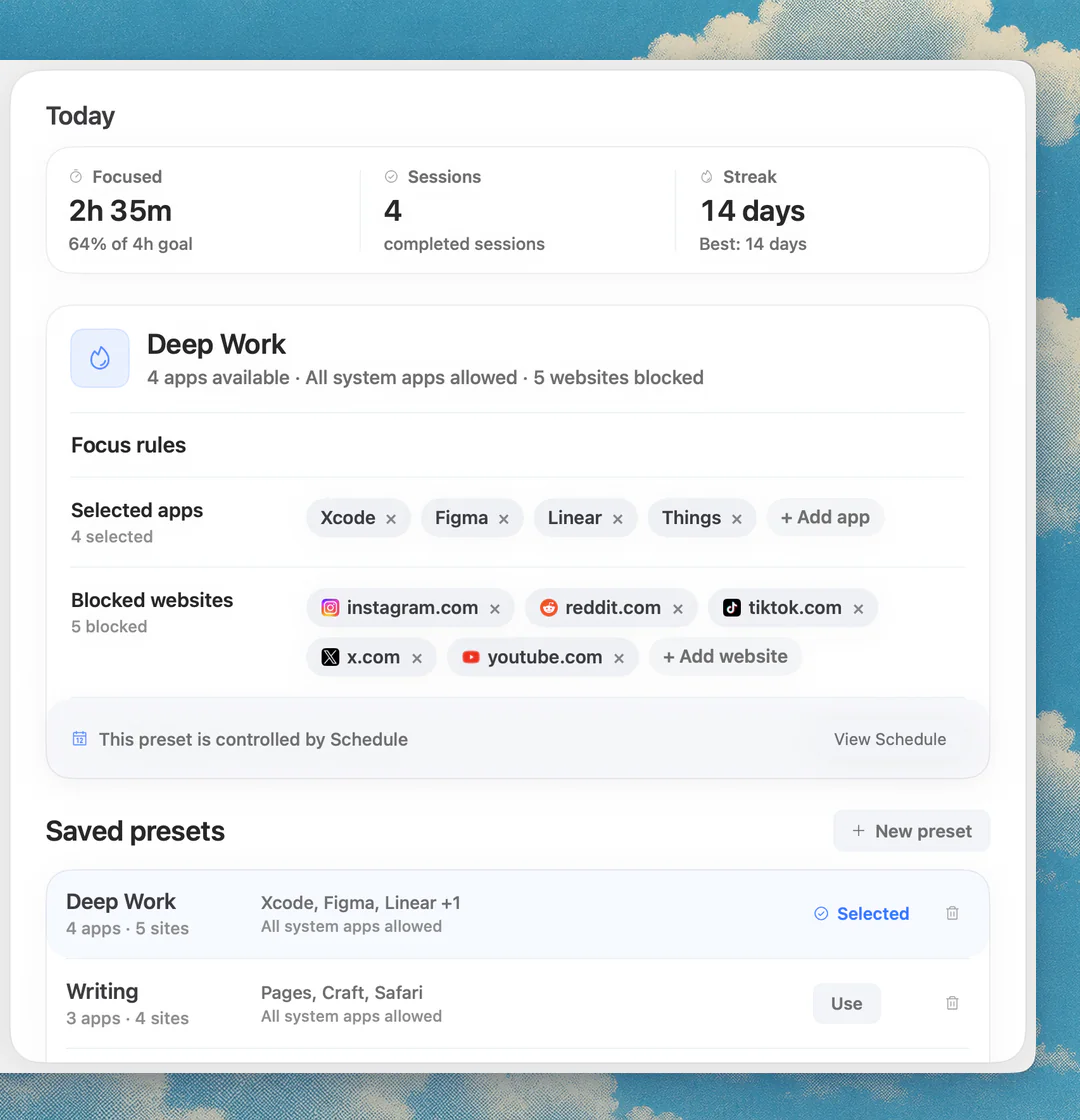
Sources
Keep reading
 ProductivityBest productivity apps for Mac in 2026: the useful shortlist
 PomodoroBest Pomodoro apps for Mac in 2026: menu-bar timers compared
 Developer productivityFocus app for coding on Mac: build a protected developer lane
 PomodoroPomodoro timer with website blocking: a Mac setup that actually helps