Best productivity apps for Mac in 2026: the useful shortlist
Best productivity apps for Mac in 2026, by job: Raycast, Things 3, Todoist, Obsidian, Timing and Nudge. Pick one app per layer, with free options noted.
Quick answer
The best productivity apps for Mac depend on what fails in your day: Things 3 or Todoist if you lose tasks, Raycast if you waste seconds finding things, Fantastical or a time-blocking app if your day has no shape, and Nudge if you know what to do but keep drifting into other apps and sites. Raycast, Todoist and Obsidian all have free plans. Start with one app for the layer that breaks most often, not a full stack.
How do these apps compare?
Pick a tool by the bottleneck in your workday, not by the longest feature list.
| App | Best for | Price | Website |
|---|---|---|---|
 NudgeTop pick NudgeTop pick | Protecting deep work sessions | $9.99 once | Get Nudge |
 Raycast Raycast | Keyboard-first Mac workflows | See pricing | Visit |
 Alfred Alfred | Custom power-user workflows | See pricing | Visit |
 Things 3 Things 3 | Personal planning | See pricing | Visit |
 Todoist Todoist | Cross-platform task capture | See pricing | Visit |
 Fantastical Fantastical | Calendar ergonomics | See pricing | Visit |
 Notion Notion | Shared docs and databases | See pricing | Visit |
 Obsidian Obsidian | Local knowledge base | See pricing | Visit |
 Timing Timing | Automatic Mac activity review | 30-day trial, from $9/mo billed annually | Visit |
 Freedom Freedom | Cross-device blocking | $8.99/mo or $99.50 lifetime (Oct deal) | Visit |
 Keyboard Maestro Keyboard Maestro | Deep Mac automation | See pricing | Visit |
 Rectangle Rectangle | Window management | See pricing | Visit |
Which tool should you pick?
Best command center
Raycast
Fast keyboard launcher, extensions, snippets, AI workflows, and app actions.
Best personal task manager
Things 3
Polished Mac-native capture, today planning, and project lists with low maintenance.
Best cross-platform tasks
Todoist
Reliable task capture, labels, recurring dates, and broad integrations.
Best focus protection
Nudge
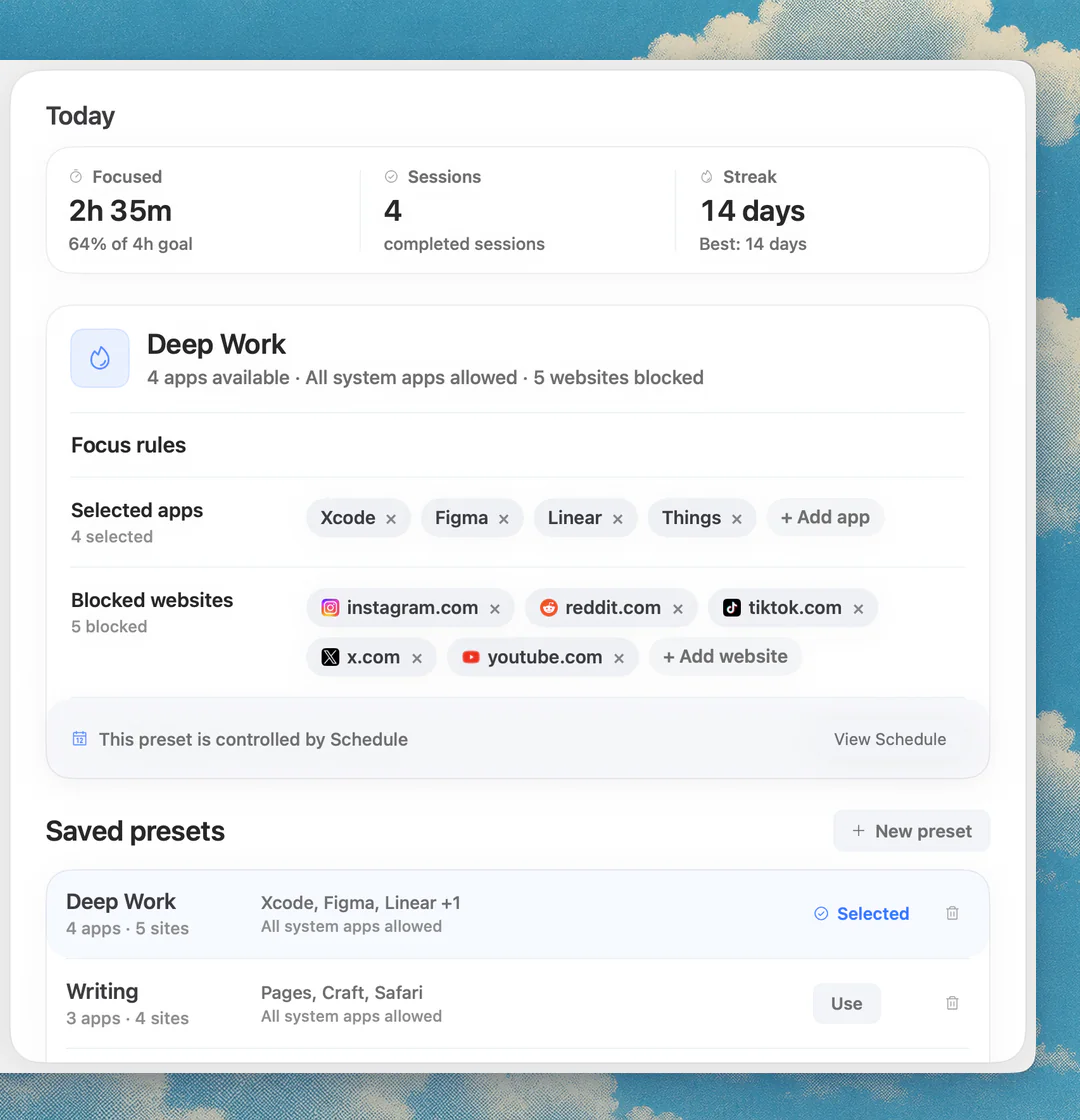
Starts task-specific Mac sessions with distracting apps and websites blocked.
Best automatic time visibility
Timing
Mac-native activity tracking for reconstructing where work time went.
The apps in detail
- $9.99 once
1. Focus protection
Nudge
Best for: Protecting deep work sessions
- Choose it if
- You need your Mac to stay inside a work lane after the task is chosen.
- Skip it if
- You mainly need invoices, payroll timesheets, or team utilization reports.
2. Launcher and automation
Raycast
Best for: Keyboard-first Mac workflows
- Choose it if
- You want commands, snippets, app actions, clipboard history, and AI actions from one bar.
- Skip it if
- You prefer a very simple launcher with fewer extensions.
3. Launcher and automation
Alfred
Best for: Custom power-user workflows
- Choose it if
- You want mature workflow automation and do not mind configuring it.
- Skip it if
- You want a more modern extension marketplace out of the box.
4. Tasks
Things 3
Best for: Personal planning
- Choose it if
- You want a calm, Mac-native task manager that makes daily review easy.
- Skip it if
- You need shared team projects or heavy integrations.
5. Tasks
Todoist
Best for: Cross-platform task capture
- Choose it if
- You move between Mac, phone, browser, and team tools.
- Skip it if
- You want a fully local, Mac-only setup.
6. Calendar
Fantastical
Best for: Calendar ergonomics
- Choose it if
- Your bottleneck is schedule clarity, time zones, or fast calendar entry.
- Skip it if
- You need the app to block distractions during the block.
7. Workspace
Notion
Best for: Shared docs and databases
- Choose it if
- Your work lives in briefs, databases, project docs, and collaboration spaces.
- Skip it if
- You need the fastest native capture tool.
8. Notes
Obsidian
Best for: Local knowledge base
- Choose it if
- You want durable markdown notes and linked thinking.
- Skip it if
- You need built-in team workflows.
- 30-day trial, from $9/mo billed annually
9. Time analytics
Timing
Best for: Automatic Mac activity review
- Choose it if
- You want passive tracking across apps, documents, and websites.
- Skip it if
- You need a session blocker.
- $8.99/mo or $99.50 lifetime (Oct deal)
10. Distraction blocking
Freedom
Best for: Cross-device blocking
- Choose it if
- Your distractions move across Mac, phone, and tablet.
- Skip it if
- You want a Mac-only focus lane with app presets.
11. Automation
Keyboard Maestro
Best for: Deep Mac automation
- Choose it if
- You are willing to build macros for repetitive work.
- Skip it if
- You want a ready-made productivity system.
12. Workspace hygiene
Rectangle
Best for: Window management
- Choose it if
- You waste time resizing windows and arranging apps.
- Skip it if
- Your real bottleneck is attention drift.
Start with the broken layer
Most Mac productivity lists mix launchers, calendars, task managers, notes, trackers, blockers, and AI tools as if they solve the same problem. They do not. A launcher saves seconds. A task manager protects commitments. A time tracker explains where hours went. A blocker changes what is easy to open during a work block.
That is why the useful question is not which app is best. The useful question is which part of your workday fails most often.
- For forgetting work: Things 3 or Todoist.
- For finding commands and files: Raycast or Alfred.
- For messy schedules: Fantastical, Reclaim, Sunsama, or Motion.
- For billable visibility: Toggl Track, Timing, Harvest, or Clockify.
- For browser and app drift: Nudge, Freedom, Cold Turkey, or SelfControl.
Build a stack, not an app pile
A clean Mac setup usually has one app per layer: capture, plan, execute, and review. Too many overlapping tools create upkeep. Too few tools leave the hard behavior unchanged.
For example, a founder might capture work in Todoist, block focus time in Fantastical, start a Nudge coding preset, and review the week in Timing. Each tool has a job. None has to become the whole operating system.
Where Nudge fits
Nudge is not trying to replace your task manager or calendar. It fits after the decision is made. When the session starts, Nudge blocks the apps and websites you picked so the plan survives the browser. It costs $9.99 once with a 7-day free trial on each Mac.
New to blocking? Read how to block apps on Mac and how to use Focus mode on Mac. If you want timed work blocks first, the free online Pomodoro timer needs no sign-up, and the best time tracking apps for Mac cover the review layer.
Best Mac productivity stack by workflow
A useful productivity stack is usually smaller than the lists you see in search results. For a solo founder, the stack might be Raycast, Things, Notion, Timing, and Nudge. For a developer, it might be Raycast, Rectangle, Maccy, Obsidian, Timing, and Nudge. For a writer, it might be Ulysses or iA Writer, Obsidian, a calendar, Session, and Nudge.
The common pattern is simple: one capture layer, one planning layer, one execution layer, and one review layer. If two apps are fighting for the same job, remove one. Productivity gets worse when the system itself becomes a daily maintenance task.
- Capture: Todoist, Things, Drafts, Raycast quick notes, or Apple Reminders.
- Plan: Fantastical, Motion, Reclaim, Sunsama, Akiflow, or a simple calendar.
- Execute: Nudge, Freedom, Cold Turkey, Focus, Session, or a Pomodoro timer.
- Review: Timing, Rize, RescueTime, Toggl Track, or a weekly calendar review.
How to choose between all-in-one and best-in-class tools
All-in-one apps look attractive because they reduce the number of subscriptions and icons. The tradeoff is depth. Notion can hold tasks, docs, notes, and dashboards, but it is not the fastest launcher, the strictest blocker, or the most precise time tracker. Motion can plan a calendar aggressively, but it may feel heavy if you only need a daily task list.
Best-in-class stacks create more moving parts, but each part is sharper. The right answer depends on where the cost shows up. If setup time is the bottleneck, choose fewer tools. If execution quality is the bottleneck, choose specialized tools and keep the workflow deliberately narrow.
A realistic 7-day rollout
Do not install twelve productivity apps in one afternoon. Start by fixing the highest-cost leak. On day one, pick a capture app and move all open tasks into it. On day two, reserve focus blocks in the calendar. On day three, create one Nudge preset for the work you avoid most often. On day four, review where time went with a tracker or Screen Time.
By the end of the week, you should have one stable loop: capture the task, schedule the block, start the protected session, and review the result. Only add another tool after that loop is working.
What most roundups miss
Many lists rank tools by feature count. That is backwards for Mac productivity. A feature is only useful if it reduces a repeated decision or blocks a repeated failure. Clipboard history is valuable when you reuse commands all day. A strict blocker is valuable when one site repeatedly wins. AI scheduling is valuable when the calendar changes faster than you can maintain it.
Use the rankings as a menu, not a prescription. The best productivity app for Mac is the one that changes the specific part of the day that keeps breaking.
FAQ
What is the best productivity app for Mac overall?
There is no single best app for every Mac user. Raycast is a strong command layer, Things 3 and Todoist are strong task layers, Notion and Obsidian are strong knowledge layers, Timing is strong for activity review, and Nudge is strongest when the problem is staying inside a focused work session.
Should I use one productivity app or a stack?
Use one app when your workflow is simple and maintenance is the problem. Use a stack when different layers keep failing: tasks, calendar, focus, notes, or time visibility. The stack should still be small enough that you can explain what each tool does in one sentence.
What are the best free productivity apps for Mac?
Raycast has a free plan with clipboard history, quicklinks, snippets and window management (Pro is $10 a month or $96 a year, and AI is not in Free). Todoist has a free Beginner plan. Obsidian is free for personal use, with paid Sync at $4 per user per month billed annually. Apple Reminders, Calendar and Notes are built in. Prices checked on the vendors' sites on 10 October 2026.
Are AI productivity apps worth it?
AI tools are worth it when they remove a real planning or writing bottleneck. They are not worth it when they add another inbox to check. For many Mac users, AI scheduling or command automation helps, but focus protection still needs explicit app and website blocking.
Where does Nudge fit in a productivity stack?
Nudge fits after planning and before execution. Your task manager or calendar says what to do. Nudge helps the Mac environment match that decision by blocking the apps and websites you picked for the session.
Nudge for Mac
Turn the guide into a focus session
Pick the apps and websites that pull you away and start the session from the menu bar. They stay blocked until it ends. $9.99 once after 7 days free, no card to start.
Download for macOS