
Pomodoro timer with website blocking: a Mac setup that actually helps
Pomodoro timer with website blocking on Mac: start a 25-minute timer, block distracting sites and apps for the interval, and use presets per task.
Quick answer
The simplest Pomodoro timer with website blocking on a Mac is Nudge: start a session from the menu bar and the websites and apps you picked stay blocked in Safari and Chrome until the timer ends ($9.99 once, 7-day free trial). Be Focused Pro, Session (Pro) and Focus also combine a Pomodoro timer with blocking. If you only need the countdown, the free online timer at /pomodoro-timer/ works in any browser, but a browser tab cannot block anything outside itself. Use the timer to start and the blocker to make the interval survive.
How do these apps compare?
Turn a timer into a protected focus session.
| App | Best for | Price | Website |
|---|---|---|---|
 NudgeTop pick NudgeTop pick | Timer-adjacent session protection | $9.99 once | Get Nudge |
 Session Session | Pomodoro sessions and analytics | Free, Pro $39.99/yr | Visit |
 Be Focused Pro Be Focused Pro | Simple Mac intervals with optional blocking | $19.99 once | Visit |
 Focus Focus | Timer plus blocker | From $29 once | Visit |
 SelfControl SelfControl | Hard website blocks | Free | Visit |
Which tool should you pick?
For short starts
25/5 timer
Useful when the hardest part is beginning.
For deep work
45/10 or 60/10
Better when context takes longer to load.
For protection
Nudge preset
Block the apps and websites that pull you away.
The apps in detail
- $9.99 once
1. Focus protection
Nudge
Best for: Timer-adjacent session protection
- Choose it if
- You need app and website rules during the interval.
- Skip it if
- You only want a visible countdown.
- Free, Pro $39.99/yr
2. Timer
Session
Best for: Pomodoro sessions and analytics
- Choose it if
- You want a dedicated Mac focus timer with history.
- Skip it if
- You need stricter blocking.
- $19.99 once
3. Timer and blocking
Be Focused Pro
Best for: Simple Mac intervals with optional blocking
- Choose it if
- You want custom intervals and breaks and can pay $19.99 once (checked 10 October 2026).
- Skip it if
- You want presets and schedules for blocklists.
- From $29 once
4. Blocking and timer
Focus
Best for: Timer plus blocker
- Choose it if
- You want profiles, schedules, and Pomodoro together.
- Skip it if
- You want less setup.
- Free
5. Website blocking
SelfControl
Best for: Hard website blocks
- Choose it if
- You need a strict domain block during a timed session.
- Skip it if
- You need app rules and presets.
The timer should start the blocking
The cleanest Pomodoro setup has one action for the timer and one action for the environment. Start the clock, then start the session rules that make the clock meaningful.
If you just need the clock, the free online Pomodoro timer on this site covers Pomodoro 25/5, Deep work 50/10, Long focus 90/20 and custom lengths in a browser tab. Pair it with blocking when drifting is the problem. For longer intervals, the 52/17 rule is a common alternative to 25/5.
To block apps as well as sites, see how to block apps on Mac. For a wider view of timers, read the best Pomodoro apps for Mac.
For a writing interval, block feeds and inboxes. For coding, block video, news, and social sites while keeping docs and package references available.
Use breaks intentionally
A break is not a loophole. Decide what is allowed during breaks before the session starts. If short-form feeds turn five minutes into thirty, keep those blocked and use a real break instead.
Review the block, not your character
If the session failed, adjust the preset. Maybe a work site was missing. Maybe a distracting app should have been blocked. Treat it like workflow tuning, not a willpower referendum.
Build the preset before the timer
Most people pick the timer first and the rules later. Reverse that. Decide which apps and sites are required for the next interval, then choose a timer length. The preset should answer: what is blocked, and what happens during breaks?
For a 25-minute writing sprint, the answer might be: block mail, chat, feeds, video, and analytics. For a coding sprint, block chat, video, news, and shopping.
Handle research without opening the floodgate
Research is the hardest case because it needs the web. Use a dedicated research preset with a shorter timer, a source list, and a clear output. The output might be five notes, three citations, or one decision. When the research interval ends, switch back to drafting or coding rules.
This prevents research from becoming a socially acceptable distraction loop.
What to do when a session fails
If a Pomodoro fails, inspect the system before blaming discipline. Was the task too vague? Was the interval too short? Was a work-critical site blocked? Was a distracting app missing from the block list? Each failure should produce one preset change or one task change.
After a few sessions, the setup becomes smoother because the rules are based on real behavior rather than guesses.
The three-part setup
A strong Pomodoro blocking workflow has three parts: the task, the timer, and the environment. The task defines the output. The timer defines the commitment. The environment defines what is easy or hard to access during the interval.
Most failed Pomodoros have a weak task or an open environment. A timer cannot compensate for a vague task like work on project. It also cannot compete with a browser full of feeds one click away.
- Task: write the exact outcome before starting.
- Timer: choose an interval that fits the task type.
- Environment: start a Nudge preset or blocker before the first minute.
Break design
Breaks should lower fatigue without reopening the loop. Good breaks are physical, short, and easy to stop: water, stretching, walking, breathing, or clearing the desk. Risky breaks are infinite: feeds, video, shopping, news, and inbox checking.
If you want entertainment breaks, schedule them outside focus cycles. During work cycles, design breaks for recovery, not stimulation.
Advanced setup for long work
For longer sessions, use a sequence: 25 minutes to start, 50 minutes to continue, 10 minutes to review. Keep the same Nudge preset running through the deep work block, then loosen rules only during the review if needed.
This works better than restarting from zero every 25 minutes when the task has a high context load.
Use different rules for different intervals
The first interval can be strict because the goal is to start. The middle interval can be broader if the task needs references. The final review interval can leave notes, issue trackers, calendar, or project tools open. That is more realistic than one blocklist for the whole session.
Nudge presets make this practical because the rule set can match the stage: start, deep work, research, review, or admin cleanup.
If you only use one rule set, make it safe for the deepest work and manually switch into a broader research mode when needed. That bias keeps the default focused while still allowing legitimate exceptions.
FAQ
What is the best Pomodoro timer with website blocking?
On a Mac, Nudge starts a timed session from the menu bar and blocks the apps and websites you chose until it ends ($9.99 once, 7-day free trial). Focus, Be Focused Pro and Session (Pro plan) also combine a Pomodoro timer with blocking. For a free countdown only, use the online timer at nudgefocus.app/pomodoro-timer/.
Is there a free Pomodoro timer that blocks websites?
Free timers such as Nudge's online Pomodoro timer, Pomofocus and the free tier of Flow count down but do not block other sites or apps. SelfControl is a free Mac website blocker with a timer, and you can run it next to a free timer. Blocking inside a timer app is usually in the paid plan.
Can a Pomodoro timer block apps as well as websites?
Yes. Nudge, Focus, Be Focused Pro and Session (Pro) can block apps as well as websites during a session. SelfControl blocks websites only. See the guide on how to block apps on Mac for the options.
Should I block websites during Pomodoro breaks?
Block the sites that reliably derail breaks. Breaks should help you recover, not reopen the exact loop the work interval was designed to avoid.
How long should a Pomodoro with blocking be?
Use 25 minutes for starting and study work. Use 45 to 90 minutes for deeper coding, writing, or design. The more web access a task needs, the more precise the preset should be.
Can I use Nudge without a Pomodoro timer?
Yes. Nudge can protect any focus block, whether it comes from a timer, a calendar event, or a manual decision to start focused work.
Nudge for Mac
Turn the guide into a focus session
Pick the apps and websites that pull you away and start the session from the menu bar. They stay blocked until it ends. $9.99 once after 7 days free, no card to start.
Download for macOS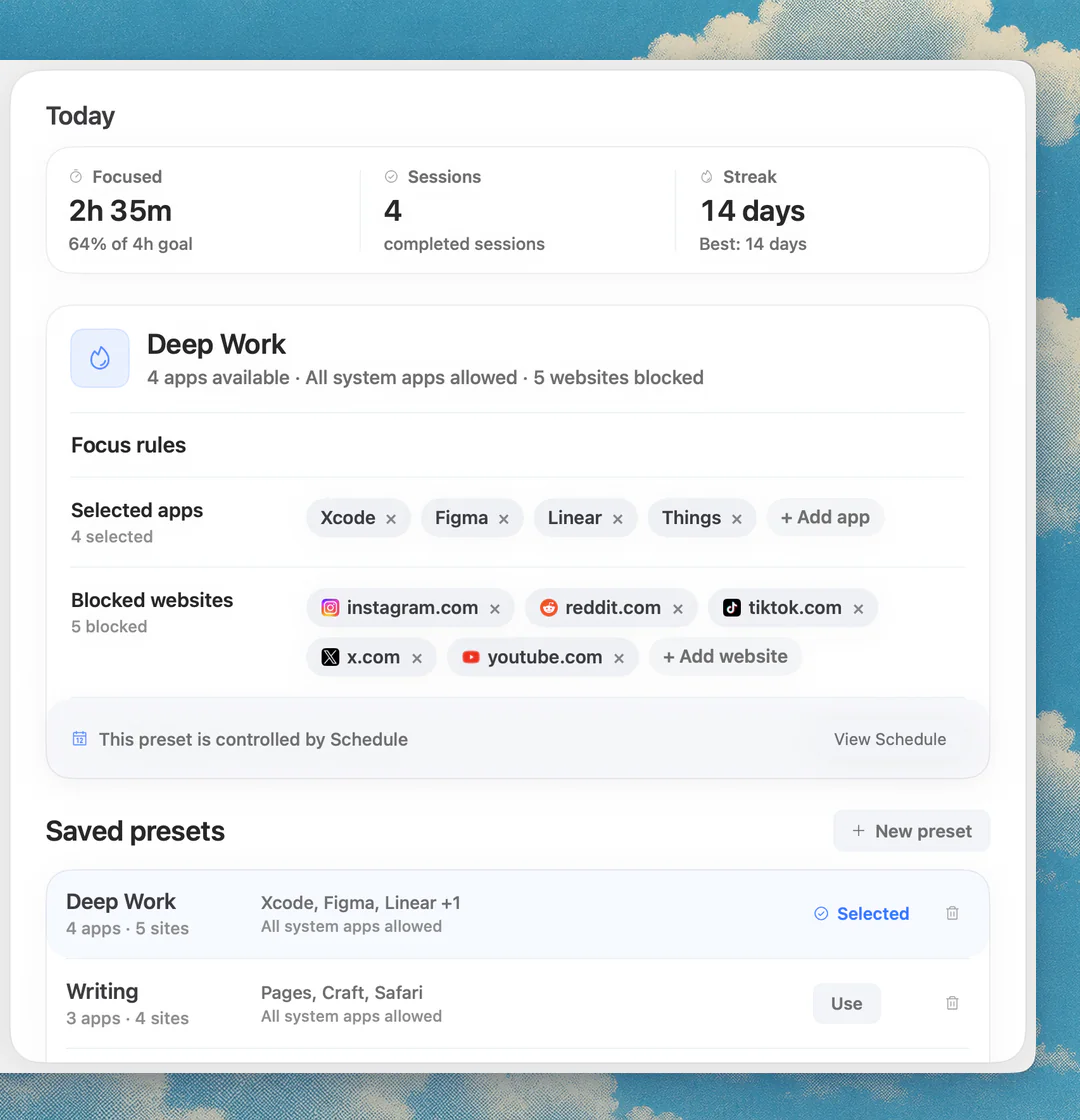
Sources
Keep reading
 PomodoroBest Pomodoro apps for Mac in 2026: menu-bar timers compared
 Website blockingWebsite blocker for Mac: the best website and app blockers in 2026
 Writing productivityFocus app for writing on Mac: tools and presets that keep drafts moving
 Developer productivityFocus app for coding on Mac: build a protected developer lane